 SMART ARCHIVE
Paper in. Filing done.
This quick start shows you in a few minutes how to get going with Smart Archive—on iPhone, iPad and Mac.
THE ARCHIVE THAT SORTS ITSELF
You capture the document. Smart Archive does the rest.
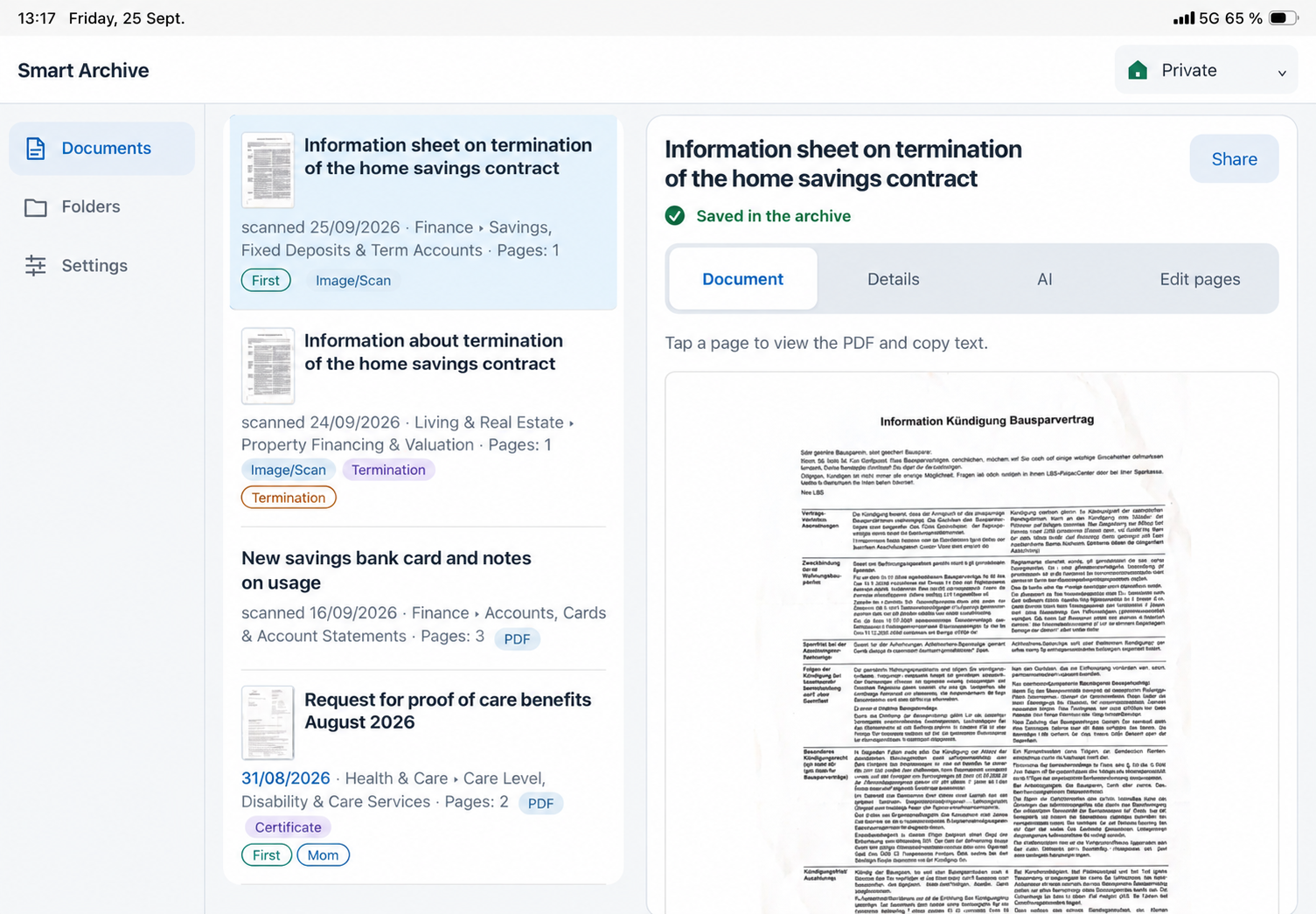
Scan a letter or import a PDF—the app recognises the text, gives the document a meaningful name, determines its type, chooses the right folder and adds tags. Later, you can find everything by any word in the text.
FULLY AUTOMATIC FILING
Less filing. More time for what matters.
Typical scanner apps save a file and leave the rest to you. Smart Archive completes the filing—you just check that everything fits.
READY FROM THE START
Two archives with a ready-made folder structure
At first start, Smart Archive creates a Private archive and—from Pro—a Business archive. Both come with many suitable folders and tags that you can rename, extend or delete at any time. So you never start with an empty archive.
8 languages—automatically matched to the operating system
 German
 English
Russian
English
Russian
 Ukrainian
 French
 Italian
 Spanish
 Portuguese
Smart Archive automatically uses the language set on your device—there is nothing to select.
Portuguese
Smart Archive automatically uses the language set on your device—there is nothing to select.
The app and both archive templates are fully available in these languages:
German
English
Russian
Ukrainian
French
Italian
Spanish
PortugueseFrom paper to a finished archive
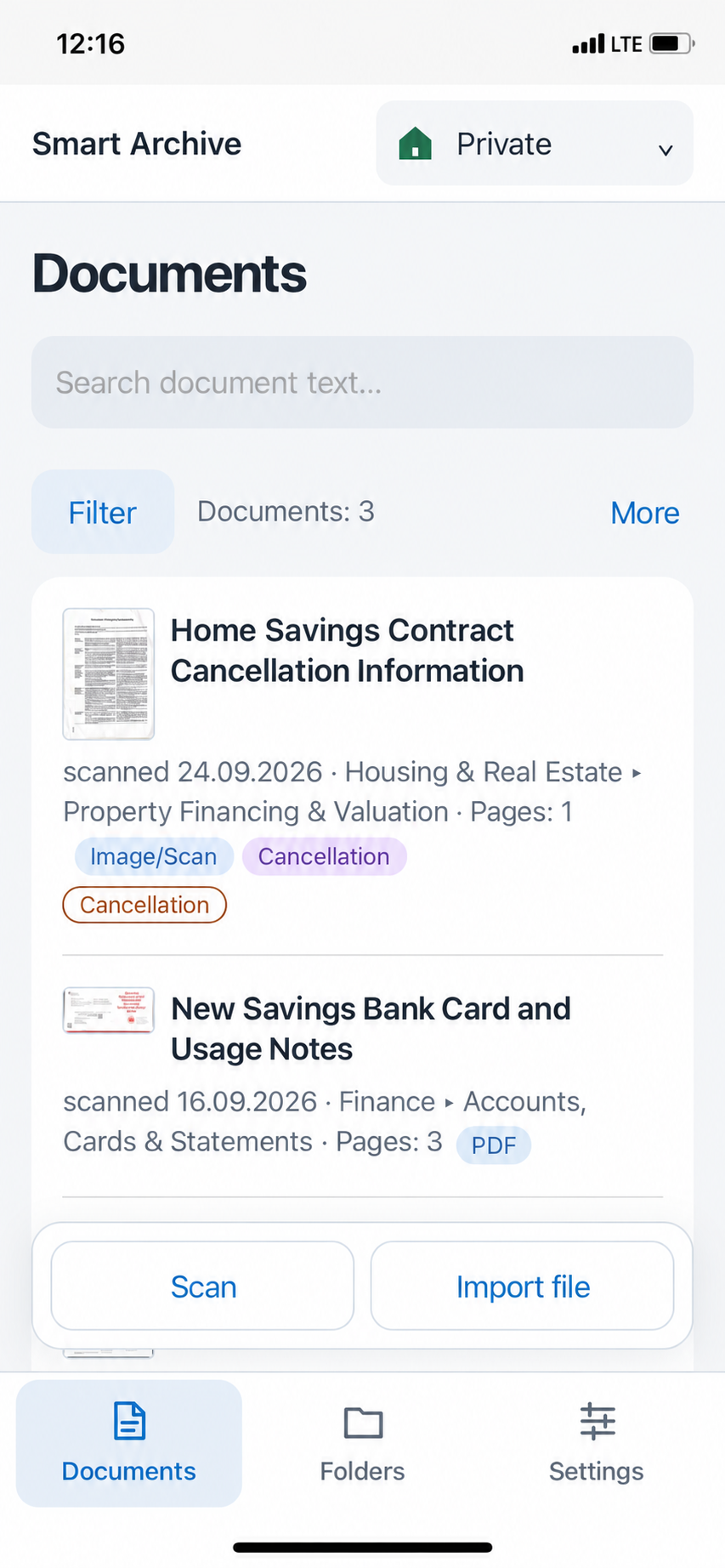
At the bottom of the iPhone you find three areas: Documents, Folders and Settings. To get started, you only need Documents.
01
Scan
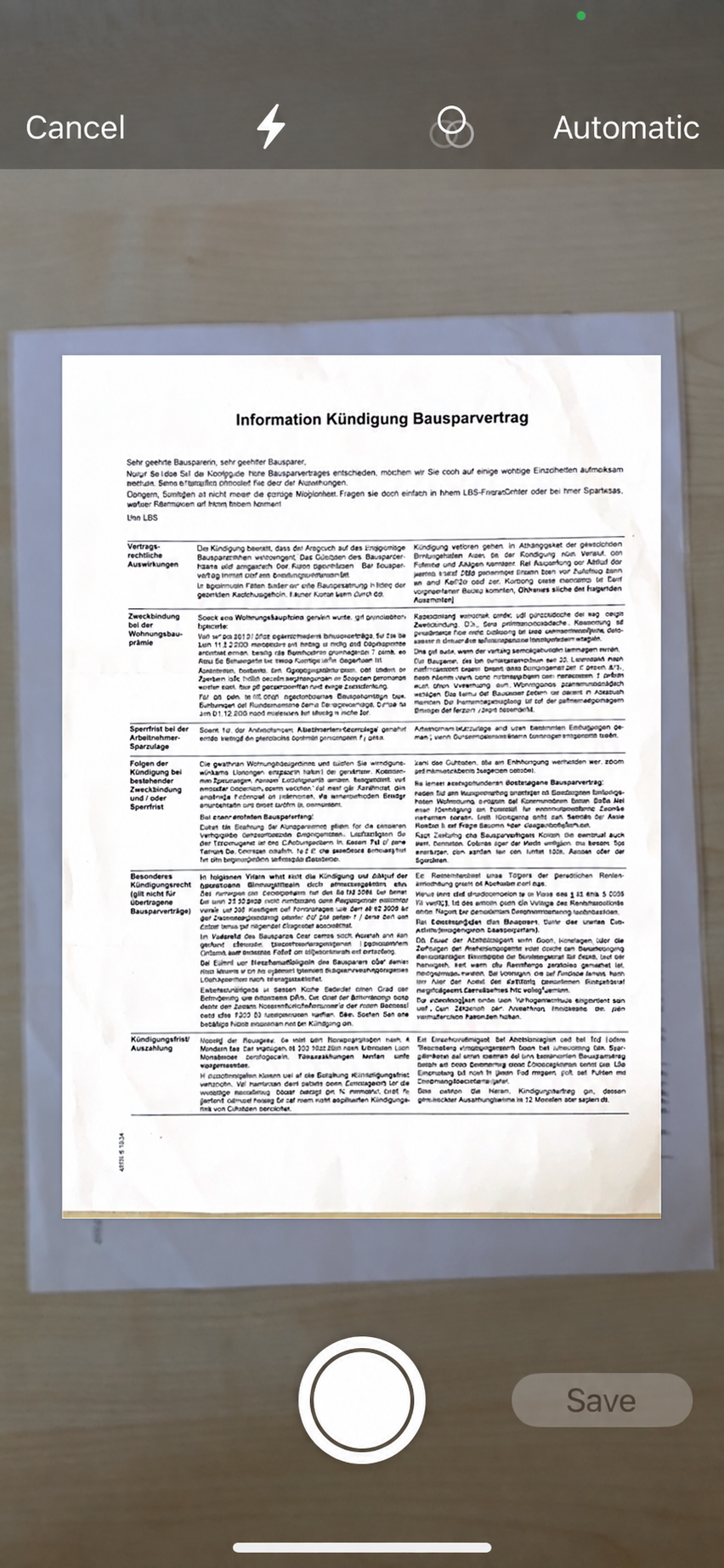
Tap Scan and hold the iPhone over the page. Set Auto at the top right—the camera then captures by itself as soon as all four corners are in view. Capture more pages if needed and tap Save at the bottom right.
- Multiple pages in one go
- Angled shots are straightened
- Works without internet too
02
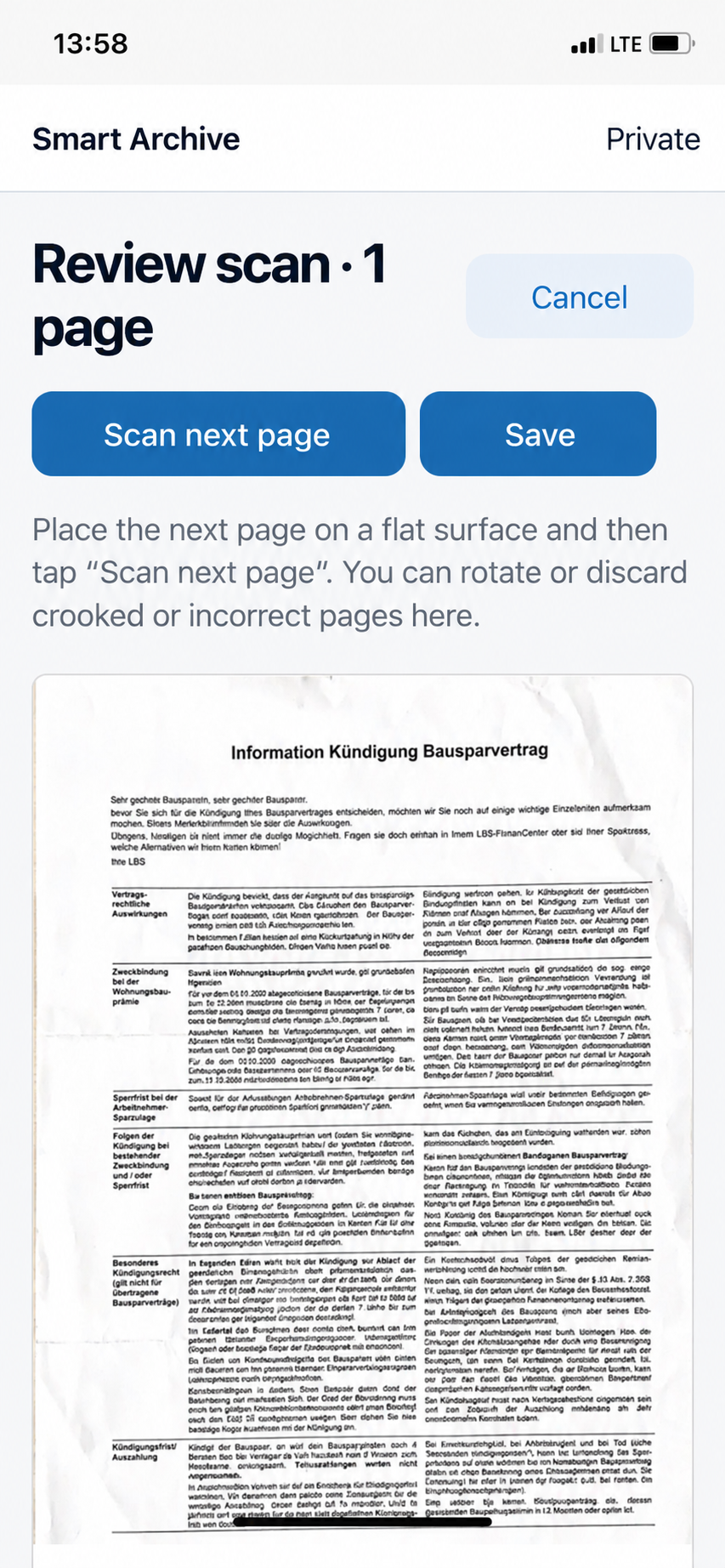
Review and save
Review scan shows all pages. Rotate or discard a failed page, add more with Scan next page—and tap Save. Smart Archive does the rest: first “Recognizing text…”, then “AI is analyzing the document…”.
Prefer to import a file?
Use Import file for invoices from your inbox or PDFs from iCloud Drive—they are recognised and filed in exactly the same way. PDFs and images work in every plan, Word and Excel from Pro.
03
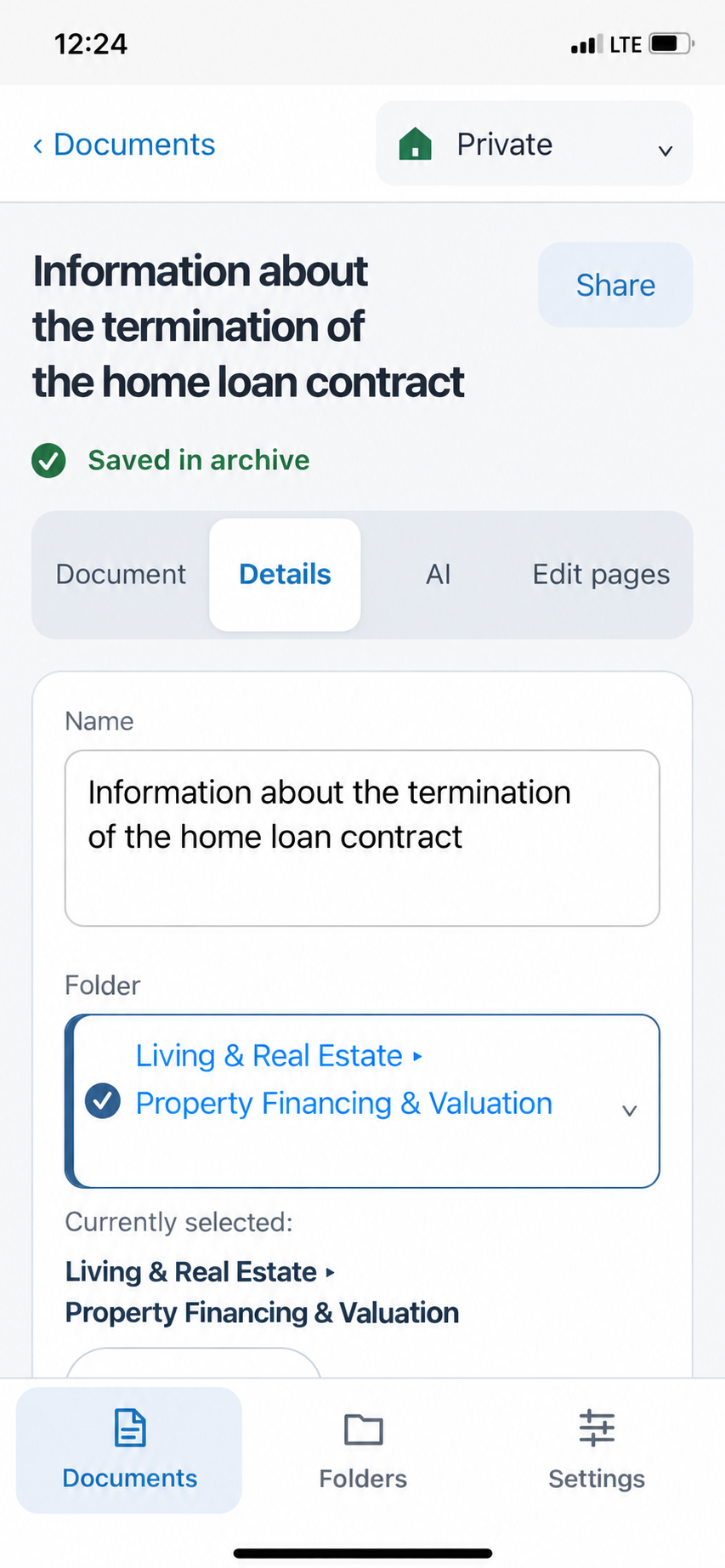
Check it—if you want to
The finished document opens with “Saved in the archive”. The Details tab shows the name, folder and tags AI chose, plus recognised details such as sender, date and amount. Change anything that doesn’t fit—everything is saved automatically.
In the AI tab you can have the document summarised or ask your own questions, such as “When is payment due?”.
04
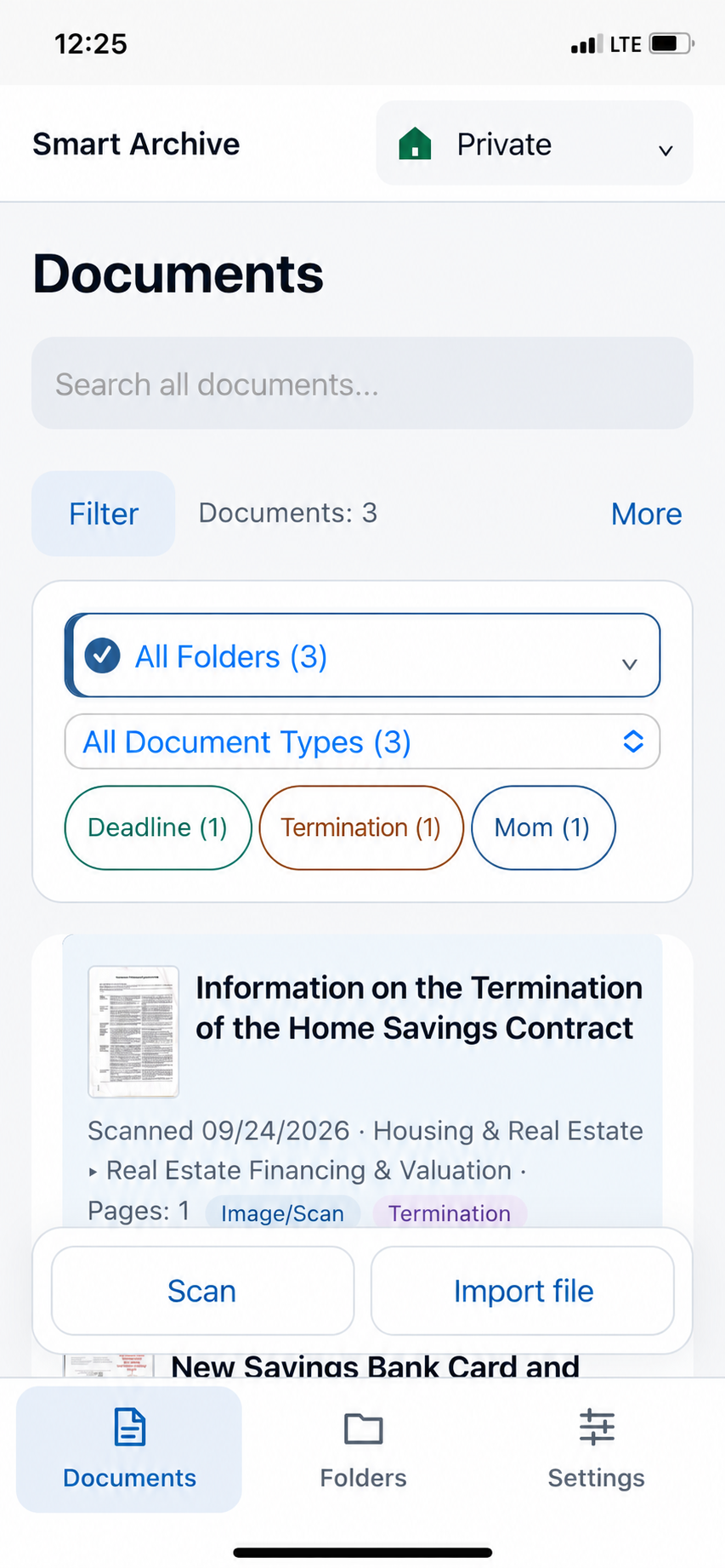
Find it in seconds
Enter any word from the document in the search field—a company name, a contract number, an amount. Or tap Filters and narrow down by folder, document type and tags. Even if you have forgotten the name, the content leads you to the right document.
AI WITHOUT SETUP
There is nothing to configure.
Smart Archive automatically picks the best available AI. You don’t need a key or an account.
ONE APP, THREE FORMATS
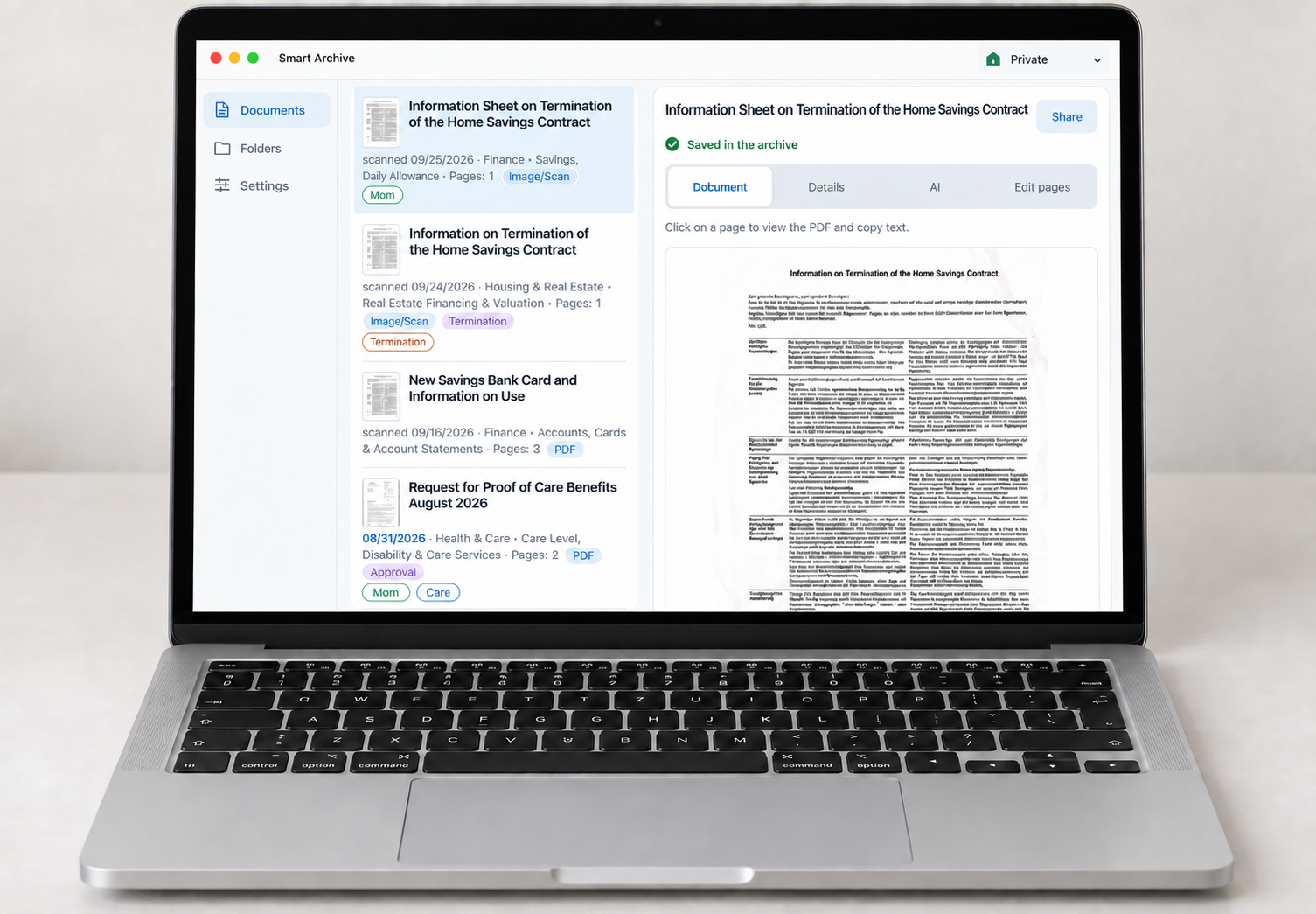
Scan on iPhone. Keep working on Mac.
iPhone, iPad and Mac with the same Apple account share the same archives through iCloud. A document you scan on the go appears on the big screen shortly afterwards.
TRY IT FREE FOR 7 DAYS
Three plans—choose what you need
After setup you can test Smart Archive for 7 days with the Standard features. When the trial or subscription ends, your archive stays fully readable, searchable and shareable.
The private archive
PDF files and images, text recognition, search, duplicate detection and the app AI.
Private and Business
Adds the business archive, switching between both and Word and Excel files.
Everything, on Mac too
Adds the Mac version, your own AI preferences and your own OpenAI key.
GO DEEPER
Every button, every setting—explained step by step.
The detailed guide shows every screen with screenshots: detail view, editing pages, filters, duplicates, folders, tags, subscription, archives and all AI settings.
Open the detailed guide